
Start with a simple Nucleus Co-op controller test
The fastest way to diagnose Nucleus Co-op controllers is to remove variables. Close virtual controller software, unplug devices you are not testing, and begin with one game handler that already launches normally. Connect the input devices before starting the instances, then give each device a clear identity such as Controller 1 or Controller 2.
Test movement and menu navigation one player at a time. If Controller 1 moves both windows, stop before changing resolution or graphics settings. Shared input usually points to device exposure, input API behavior, focus, or handler configuration. A clean test tells you whether the problem belongs to Windows, the game, the handler, or the Nucleus Co-op input layer.
Close competing tools
Exit virtual controller, keyboard remapper, and controller overlay tools for the first test.
Connect only the test devices
Use two known controllers or one keyboard path so the device list stays easy to read.
Launch one supported game
Use the exact handler and game version described in the game notes.
Test player one
Move the first player and confirm that the second game instance stays still.
Test player two
Repeat the test with the second device, then add complexity only after both paths work.
Understand XInput, DirectInput, and handler expectations
Windows can expose controllers through different input APIs. Many PC games behave most predictably with XInput devices, while other controllers or adapters may appear through DirectInput. Nucleus Co-op and a game handler may expect one API, translate another API, or require a separate tool. The controller name printed on the shell is therefore not enough evidence that the game will receive the same device in the same way.
Use the controller type that the handler documents first. If a PS4, PS5, or Joy-Con controller is visible in Windows but does not respond in the game, check whether the game expects XInput and whether the handler has a specific mapping note. Do not install several translation layers at once: each one can change the device order and make a previously clear input problem harder to reproduce.
| Input setup | First check | Common complication |
|---|---|---|
| Two Xbox/XInput controllers | Confirm Windows lists two separate devices. | The game may still assign both to the focused instance. |
| DirectInput controller | Check the handler and game input API notes. | The game may ignore or reorder the device. |
| PS4 or PS5 controller | Test whether the game expects translated XInput. | A translation layer can change device numbering. |
| Joy-Con or mixed controllers | Test one device family before mixing APIs. | Pairing and virtual-device tools can alter assignment. |
| Keyboard and mouse | Confirm which window owns focus. | Some games accept keyboard input only from the active window. |
Use keyboard and mouse with split-screen instances
Keyboard and mouse input is often more focus-sensitive than controller input. A game may accept keyboard events only from the active window, while the mouse can be captured, clipped, or reported relative to a different window size. Start with one keyboard and one controller, then test a second keyboard path only when the handler and game explicitly support it.
If the mouse appears in the wrong place, first use the handler's default window size and a normal monitor scale. Check Windows display scaling, borderless mode, overlays, and which instance owns focus. Resolution and ultrawide fixes belong after input routing works; otherwise a display change can hide the original problem.
| Symptom | Controlled test |
|---|---|
| Keyboard only controls one window | Click the intended instance, test focus, and check whether the game supports multiple keyboard paths. |
| Mouse is misplaced | Use the default handler layout, normal DPI scale, and a single monitor. |
| Mouse is trapped | Check the game's capture behavior and the handler's window mode notes. |
| Inputs stop after alt-tab | Return focus to the intended window and repeat the test before adding overlays. |
| Keyboard and controller conflict | Test each device family alone, then add the second path. |
PS4, PS5, Joy-Con, and mixed controller setup
PS4, PS5, and Joy-Con setups can work in some Nucleus Co-op games, but the result depends on how Windows exposes the device and what the game handler expects. A controller that works in one title can fail in another because the game uses a different API, player-slot rule, or launcher path. Treat the working game and handler combination as the scope of your test rather than a universal controller guarantee.
For a mixed setup, assign one device family first. For example, verify two XInput controllers, then add the PS5 controller or Joy-Con pair and observe whether the device order changes. If a handler update breaks a previously working input arrangement, compare the old and new handler notes and keep the exact error or input symptom.
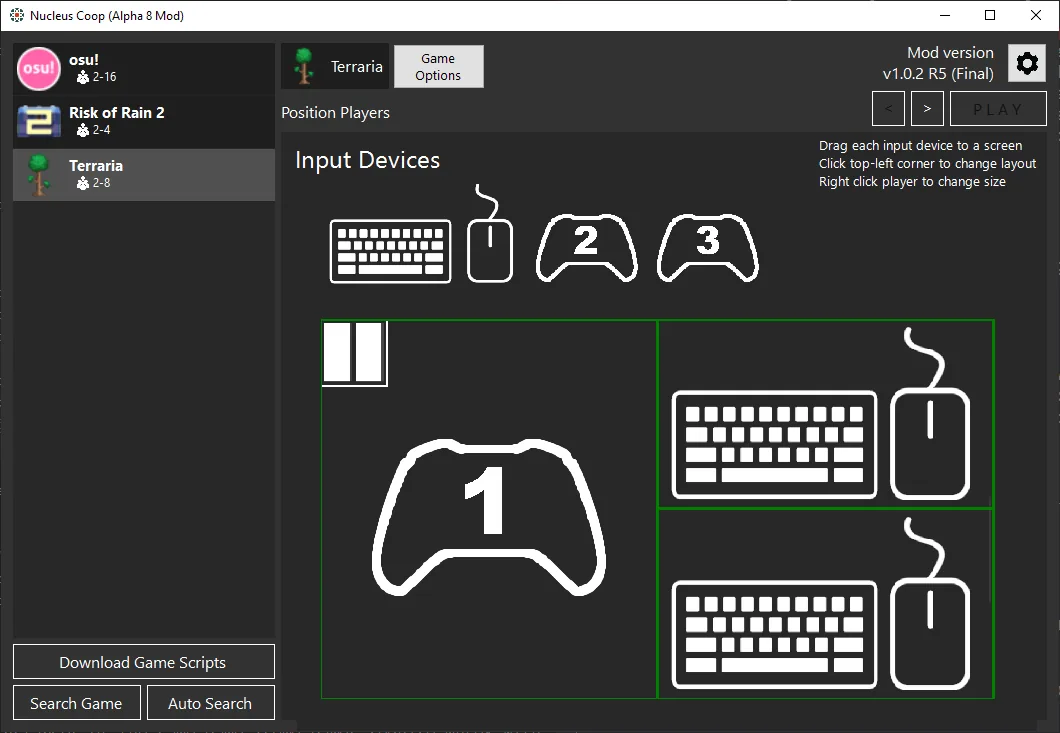
- Pair or connect the devices before launching the Nucleus Co-op session.
- Check the Windows game-controller panel and confirm every physical device is visible once.
- Avoid duplicate virtual representations of the same PS4 or PS5 controller.
- Use the game handler's notes for controller translation or required input tools.
- Test a simple two-device arrangement before adding keyboard, mouse, Joy-Con, or virtual inputs.
Final Nucleus Co-op controller checklist
Before a long session, confirm the game launches normally outside Nucleus Co-op, the handler matches the exact edition, and each controller or keyboard path responds independently. Save a short note with the application version, handler version, game build, input devices, and working window mode. That record is more useful than a generic claim that controllers worked once.
If the controller problem remains, use the troubleshooting hub and include the complete symptom: whether the game opens, which instance receives input, whether the issue happens with one controller, and whether a translation or virtual-device tool is active. Clear evidence helps separate an input assignment problem from a game or handler compatibility limit.
- The game opens normally outside Nucleus Co-op.
- The handler and game edition match.
- Each device appears once in Windows.
- Player one does not move player two's instance.
- Keyboard focus and mouse capture are predictable.
- The connection method required by the game has been tested separately.
Practical notes for a stable setup
Nucleus Co-op controller FAQ
How do I use a PS4 controller with Nucleus Co-op?
Connect it before launch, check how Windows exposes it, and follow the handler's PS4 or XInput mapping notes. Do not assume every game accepts the same controller API.
Can I use a PS5 controller with Nucleus Co-op?
Some setups can use a PS5 controller, but support depends on the game, handler, input API, and any translation layer. Test one device path before mixing controllers.
Why does one controller control both instances?
The game may be receiving a shared device, a focused-window input path, or duplicate virtual devices. Close competing tools, disconnect unused devices, and test one controller at a time.
Why does Nucleus Co-op detect no controller?
Check Windows device visibility, permissions, the handler input notes, controller API, and whether another tool has hidden or translated the device.
Can I use Joy-Con controllers?
Joy-Con support is game- and handler-dependent. Pair them correctly, confirm Windows sees the intended devices, and start with a simple device arrangement.
Can two players use keyboard and mouse?
Only when the game and handler support the required focus or input behavior. Test one keyboard path first because many games route keyboard input to the active window.
Match input advice to the game
Controller behavior is game-specific. Open the games directory to find the handler notes before you add another input tool.
Browse supported games