
Start with a clean diagnosis
Before you change a setting, write down what happened. Record the application version, game name and build, handler version, install path, controller type, and the exact error text. “It crashes” is a starting point; “Black Ops II handler opens two windows, then the second instance closes after ProtoInput starts” is actionable evidence.
Run the game outside Nucleus Co-op. If the game cannot launch normally, fix that first. Then test the application with one game, one handler, and the simplest controller arrangement you can reproduce. This baseline helps you tell a global application problem from a game-specific problem.
| What you see | First area to check |
|---|---|
| The app will not open | Dependencies, permissions, antivirus, and install path. |
| A handler will not download | WebView2, network access, source availability, and security logs. |
| The game path is rejected | Game edition, executable, folder permissions, and handler notes. |
| One instance crashes | Game build, handler, mod, save path, or per-instance graphics. |
| Inputs are shared | Controller API, input isolation, focus, or virtual controller tools. |
| Players cannot connect | Game LAN/online mode, firewall, mod, or version mismatch. |
Nucleus Co-op offline and network fixes
The application, the handler downloader, and the game can have different network requirements. Nucleus Co-op may open without internet access, while a handler download needs a connection and the game itself may need LAN discovery, an online service, or a mod-specific local connection. “Offline” is therefore not one universal mode.
If a handler download fails, test whether the failure affects every handler or only one. If the app opens but the game instances cannot connect, follow the game's own LAN or online instructions. Check Windows Firewall only after you know which process needs access, and record whether the game works outside Nucleus Co-op on the same network.
- Confirm the application starts without relying on a stale cached handler list.
- Test a second handler to separate a global downloader issue from one unavailable source.
- Check the game’s own LAN, online, or mod connection requirements.
- Allow only the required application or game through the firewall; do not disable protection as a first step.
- Use the exact error text and connection mode when searching for a game-specific fix.
OneDrive, access denied, and file paths
Cloud-synchronized folders can interfere with files that Nucleus Co-op or a handler creates, copies, locks, or updates while the game is running. If you see OneDrive errors, access denied, or a file-write failure, move the application and its working files to a simple local directory that your Windows account can read and write.
Do not move only one random subfolder and then assume the path problem is solved. Record the application path, game path, handler path, and any save or log path shown in the error. A protected folder, an inherited permission rule, a read-only file, or a security product can produce similar messages, so change one path at a time and repeat the same launch.
Close the session
Exit Nucleus Co-op and the game instances before moving files or changing permissions.
Choose a local folder
Use a short path outside OneDrive and avoid protected Windows directories during diagnosis.
Move the application cleanly
Keep the extracted or installed folder together rather than scattering files across locations.
Test one game
Use the same handler and game path so you can compare the result before and after the move.
Handler download, ProtoInject, and launch errors
Handler and launch errors are often version-specific. A handler can expect a particular executable, game launcher, mod loader, or file layout. Start by confirming the game launches normally, then compare the exact game build and handler notes. If the error appears before any game window opens, inspect the application, handler, dependency, and path layers first.
A ProtoInput or ProtoInject error usually points toward input injection or process setup rather than a generic graphics problem. Keep the controller arrangement simple, close other input tools, and test whether the error remains with one controller. If an updated handler changed the input behavior, record the before-and-after handler versions instead of deleting every related file.
- Verify the handler matches the game edition and executable.
- Confirm required launchers, mods, and dependencies are installed.
- Test one input device before adding virtual controllers or keyboard remappers.
- Read the complete error, including any code such as 3:0000065432.
- Keep the working handler version available when testing an update.
Controller, keyboard, mouse, and ProtoInput problems
If one controller controls both instances, the first question is whether Windows and the game see two distinct devices. Disconnect extra virtual devices, test one controller, and confirm the intended input API. PS4, PS5, Joy-Con, XInput, DirectInput, keyboard, and mouse setups can expose different behavior to a handler.
A mixed controller problem can also be caused by window focus. Some games accept keyboard or mouse input only from the active window, while controllers may be shared or translated by a driver. Test movement and menu navigation separately, then use the controller page for the matching device type.
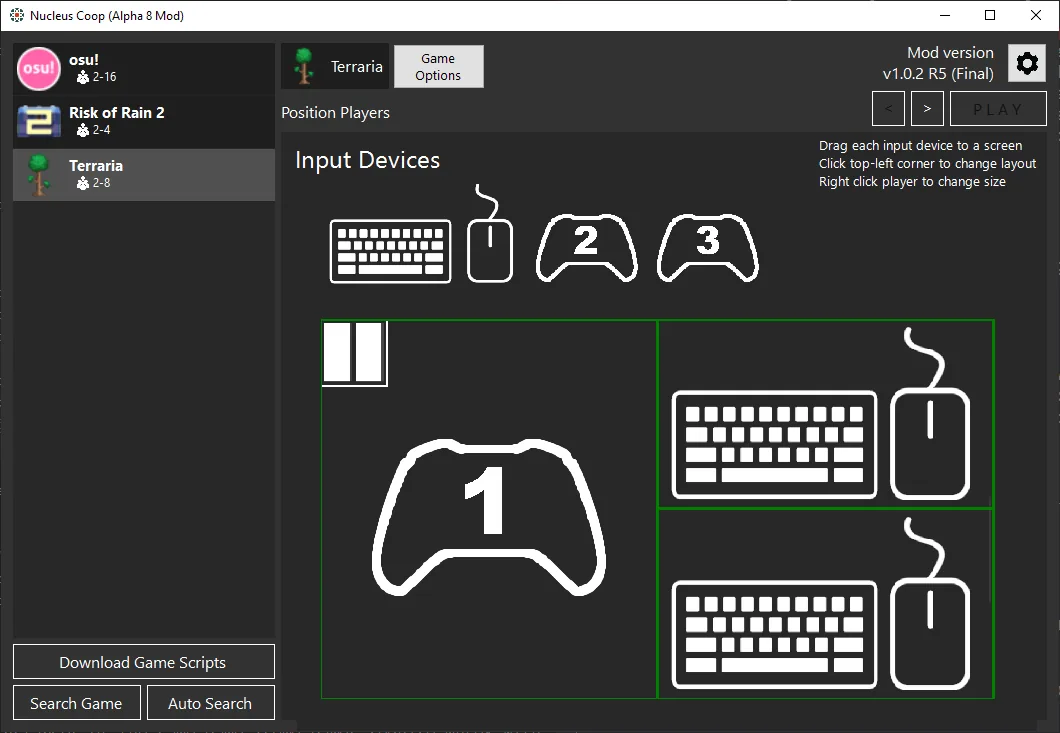
Resolution, ultrawide, mouse position, and window layout
Display issues are usually easier to solve after the handler launches and the inputs work. Start with a normal desktop resolution, one monitor, and the handler's default layout. Then change one display variable at a time: window size, monitor, ultrawide aspect ratio, borderless mode, or DPI scaling.
If the mouse appears misplaced, the game may be reporting coordinates relative to a different window size or scaling mode. If a vignette or visual effect is distracting, treat it as a game or handler-specific setting rather than changing Windows display scaling globally. Keep a screenshot or exact description of the mismatch so the fix can be reproduced.
| Symptom | Controlled test |
|---|---|
| Wrong resolution | Test the handler default on one monitor before changing aspect ratio. |
| Ultrawide layout breaks | Use a standard ratio to confirm the handler works, then adjust one display variable. |
| Mouse is misplaced | Check DPI scaling, window borders, and which instance has focus. |
| Visual vignette remains | Review game or handler notes; do not change unrelated input settings. |
| Windows overlap | Test the default window arrangement and close overlays that force focus changes. |
Practical notes for a stable setup
Nucleus Co-op troubleshooting FAQ
Why is Nucleus Co-op offline?
The app, handler downloader, and game can have separate network requirements. Check whether the app opens, whether handlers download, and whether the game instances need LAN or online connectivity.
How do I fix Nucleus Co-op OneDrive errors?
Close the application, move it and its working files to a simple local writable path outside OneDrive, and repeat the same game test before changing other settings.
What does access denied mean?
It usually indicates a permission, protected-folder, read-only-file, antivirus, or path problem. Simplify the path and identify which file or process is being denied.
How do I fix one controller controlling both instances?
Disconnect extra virtual devices, test one controller at a time, confirm the input API, and follow the controller-specific mapping guide.
What should I do with ProtoInput failed?
Treat it as an input or process-injection symptom: simplify the controller setup, close competing input tools, confirm the handler version, and capture the complete error.
Why does a game crash only in Nucleus Co-op?
Compare the handler, game build, launcher, mods, save path, permissions, and per-instance settings with a normal launch outside Nucleus Co-op.
Need an input-specific fix?
Use the controller guide when the windows launch but the wrong device, keyboard, or mouse reaches an instance.
Open controller fixes